Create a temporary test product for us to purchase as a test order to verify the system is working as intended on your website. The test product should have the following settings:
Name: TMU Test Product
Price: $2 (two dollars)
Shipping Cost: $1 (one dollar)
Make it so that the product is not visible on your website, but you can send us the URL to the test product so that we can purchase it.
NOTE about coupon: TMU6
Make sure that the coupon TMU6 is active and produces a 6% discount on the order.
Plugin Installation
Follow the instructions below to install and activate and test your TMU tracking plugin.
The TMU Tracking plugin allows The Mattress Underground to track approved referral activity and on-site funnel events on your website.
The plugin is already pre-configured. No settings need to be entered by you.
Your only job is to:
install the plugin
activate it
purge your cache
confirm that the plugin is running
Step 1: Download the Plugin
Download and save the latest TMU Tracking plugin ZIP file provided to you by The Mattress Underground.
Do not unzip the file.
Step 2: Upload the Plugin in WordPress
Log in to your WordPress admin area.
Go to Plugins and click Add New Plugin.
Click Upload Plugin.
Select the TMU Tracking ZIP file.
Click Install Now.
Step 3: Activate the Plugin
After installation is complete, click Activate Plugin.
No additional setup is required.
Step 4: Purge All Site Caches
This step is important.
Because the plugin adds tracking code to the front end of your website, older cached pages may continue to load without the new code until the cache is cleared.
After activating the plugin, purge all caches used by your site, including:
Your WordPress caching plugin cache, if any
Server or hosting cache, if any
CDN cache, if any
Cloudflare cache, if Cloudflare is active
Use a full cache purge, not a partial one.
This is normally a one-time step after activation, and again after any future plugin update. All website pages must be purged from all caches for the system to work.
Step 5: Confirm That the Plugin Is Running
After activation and cache purge, verify the plugin in these ways:
A. Check your public site
Open your website in a private/incognito browser window and visit a few public pages.
The pages should load normally with no obvious layout or functionality problems.
B. Check the plugin status URL
In your browser, open this URL on your own domain:
If the message on the screen is different or shows “false”, the plugin does not appear to be working. In that case follow these steps:
Make sure the plugin is installed and activated in WordPress.
Purge all caches again, including Cloudflare if applicable.
Test the status URL again.
If it still does not work, contact The Mattress Underground and let us know that installation was completed but the status message does not look right.
Completion Checklist
Before notifying us that installation is complete, confirm all of the following:
The plugin has been uploaded and activated
All site/server/CDN/Cloudflare caches have been purged
The website loads normally on public pages
Contact Us
If you have any problems or need assistance at any point of this process, please contact Member Support at [email protected]
Overview
Setup takes about 5 minutes: install the app, turn on one theme setting, and enter your TMU coupon code.
Before you begin
You need a Shopify store on an Online Store 2.0 theme. Most current themes, including Dawn, qualify.
You need permission to install apps and edit the theme. The store owner has both.
Have your TMU coupon code ready. Mattress Underground gives you this code.
Review the permissions and click Install again. The app asks to read orders and customer events, and to add a tracking pixel to your store.
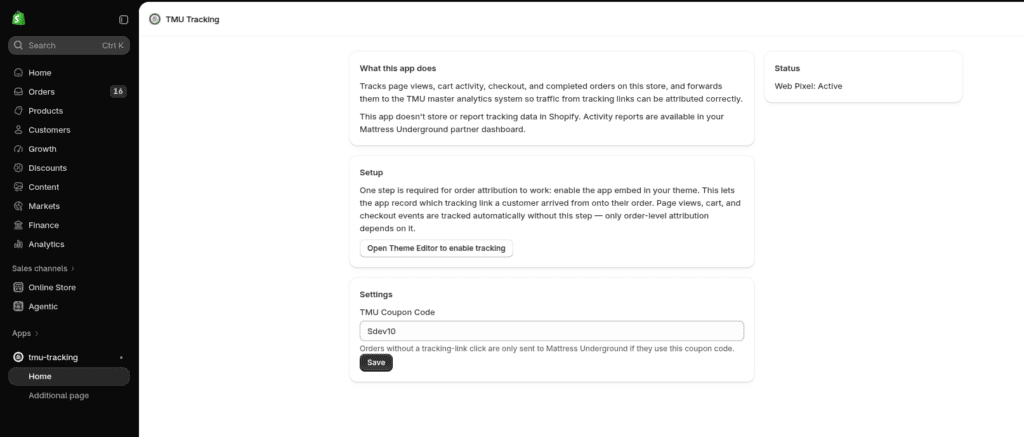
Shopify opens the TMU Tracking app home page in your admin.
Step 2: Turn on the app embed (required)
This step is needed to credit orders to Mattress Underground. Without it, the app still tracks page views, cart and checkout, but it can’t tell which tracking link an order came from.
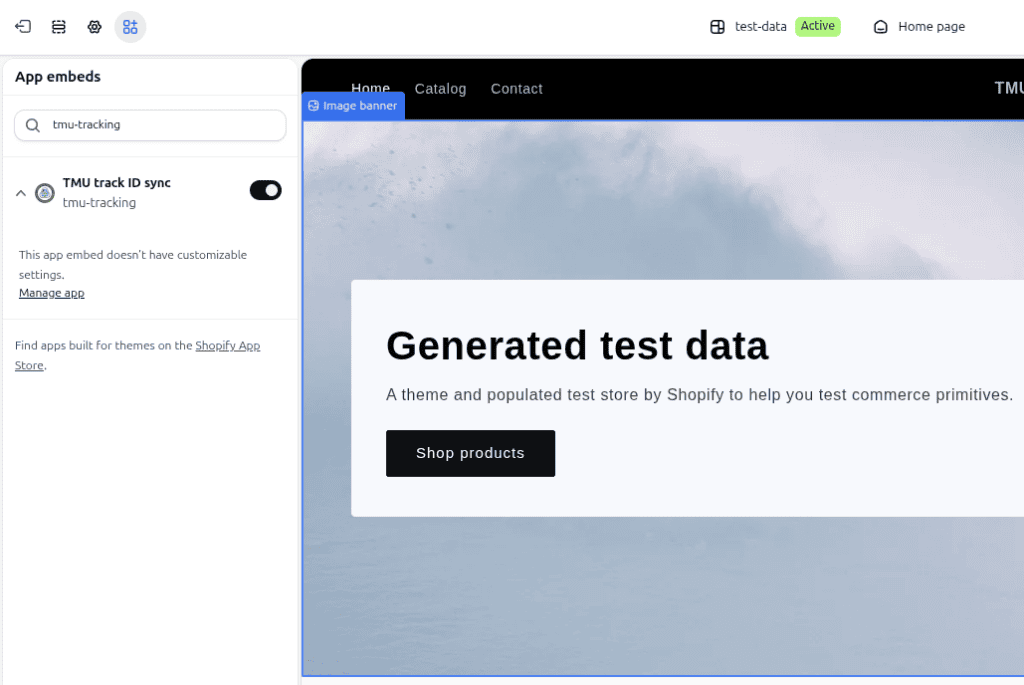
On the TMU Tracking app home page, under Setup, click Open Theme Editor to enable tracking. The theme editor opens in a new tab with the App embeds panel showing.
Find TMU track ID sync and switch it on.
Click Save in the top-right corner of the theme editor.
The Mattress Underground branding illustrated alongside the Shopify TMU Tracking APP setup instructions for merchant installation.
Generated test data for TMU tracking integration on Shopify, showcasing a guide interface and product shop button.
This applies only to your published theme. If you publish a different theme later, repeat this step for it. To turn the embed on without the app, go to Online Store > Themes > Customize, then click the App embeds icon in the left sidebar.
Step 3: Confirm the tracking pixel is active
The app adds its tracking pixel for you during install, so you don’t need to set anything up.
Open Apps > TMU Tracking.
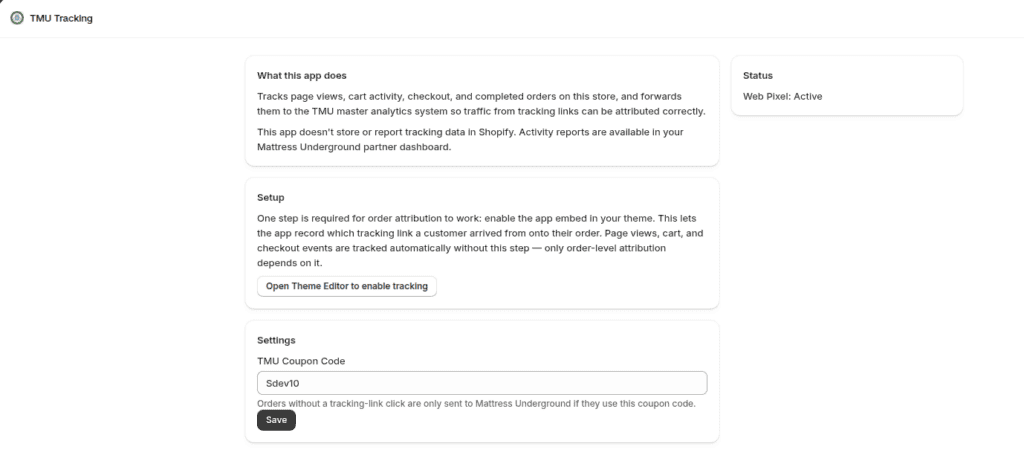
In the Status panel, check that Web Pixel says Active.
Shopify TMU Tracking APP: Merchant Installation Guide – instructions and status indicators for installation and tracking of orders on The Mattress Underground platform.
If it says Not active, wait a minute and refresh the page. If it’s still not active, uninstall and reinstall the app.
Step 4: Set your TMU Coupon Code
The coupon code lets Mattress Underground credit orders from customers who didn’t click a tracking link.
On the TMU Tracking app home page, go to Settings.
Enter your code in TMU Coupon Code, for example TMU10. Capitals don’t matter.
Click Save. You’ll see Saved. under the button.
An order is sent to Mattress Underground only if the customer arrived through a tracking link or used this code. Other orders stay private to your store. If your coupon code changes, update it here.
Check that everything is working
Tick each item once it’s done:
The app is installed and opens under Apps > TMU Tracking.
TMU track ID sync is on in the theme editor’s App embeds, and the theme is saved.
The Status panel shows Web Pixel: Active.
Your TMU Coupon Code is saved.
After that, ask your Mattress Underground contact to confirm they can see activity from your store.
Troubleshooting and FAQ
Question
Answer
Web Pixel says Not active
Wait a minute and refresh. If it’s still not active, uninstall and reinstall the app.
I can’t find TMU track ID sync in App embeds
Check that you’re editing your published theme and that it’s an Online Store 2.0 theme. Then reload the theme editor.
I changed or republished my theme
Turn on TMU track ID sync again in the new theme, then save.
Will the app change how my store looks?
No. Nothing visible is added to your storefront.
Can I see tracking reports in Shopify?
No. Reports are in your Mattress Underground partner dashboard.
Are all my orders sent to Mattress Underground?
No. Only orders from a tracking link or with your TMU Coupon Code are sent.
Uninstalling and getting help
To uninstall, go to Settings > Apps, open the … menu next to TMU Tracking, and click Uninstall. The tracking pixel is removed automatically. The app embed stops working too, so you don’t need to change your theme.